Chat Window Guide | GPT AI Flow - Intelligent Conversation Companion
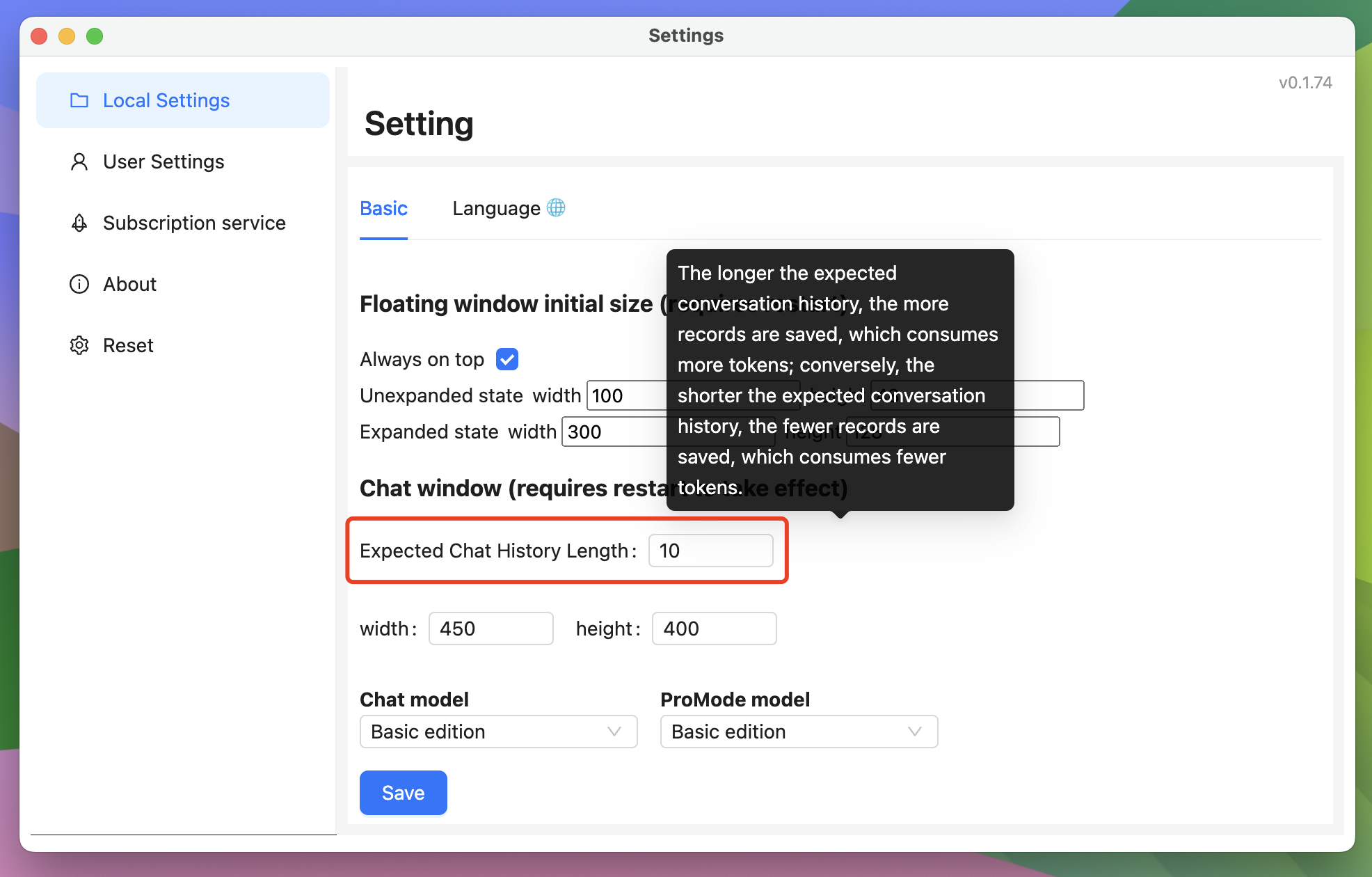
01-Set Conversation History Length
- Open settings window
- Set desired conversation history length
02-Quick Button Group
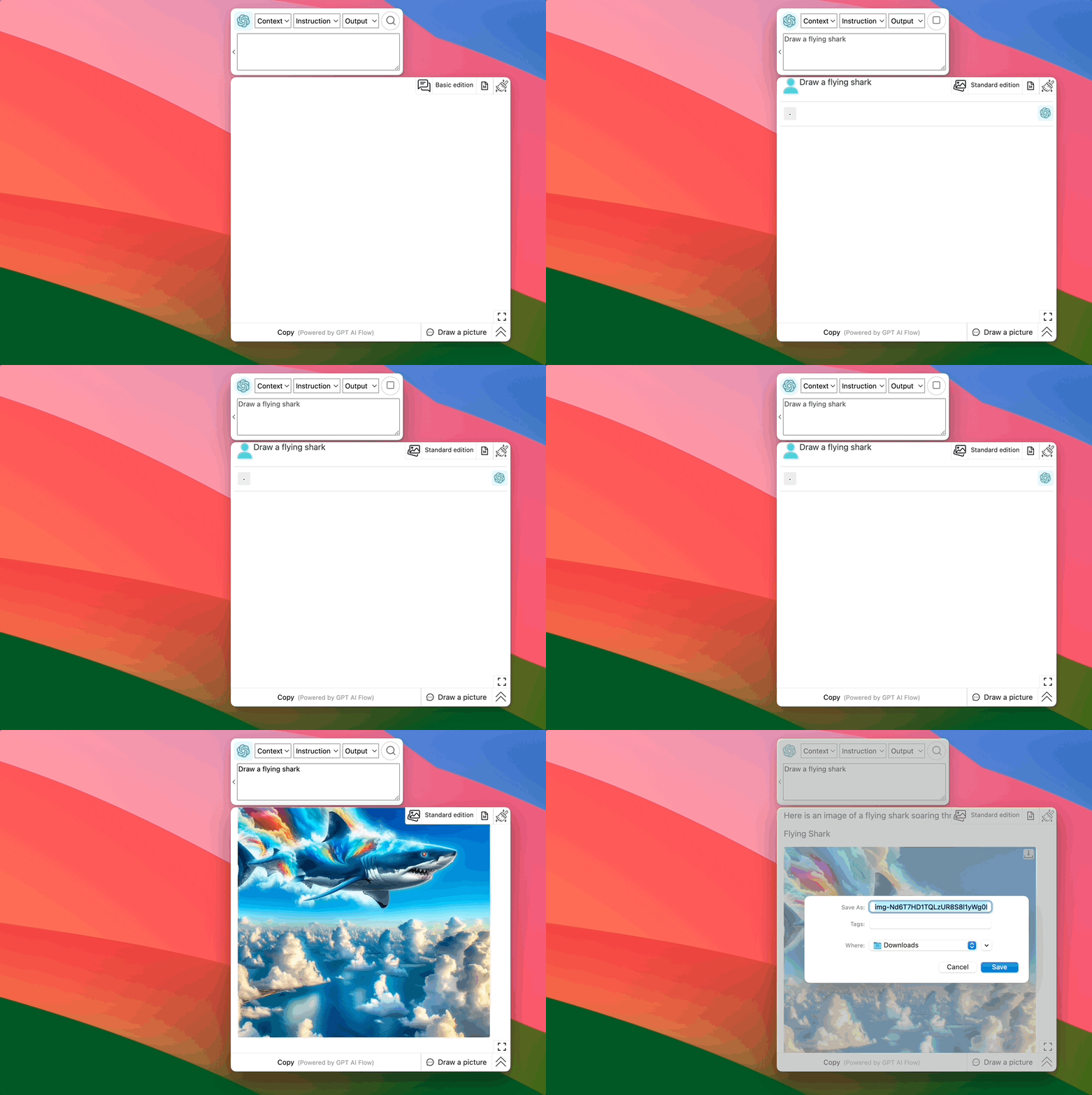
01-Conversation Mode Switch
01-Historical Conversation
This mode is suitable for scenarios that require in-depth discussions with AI, such as exploring complex concepts or designing solutions. It remembers previous conversation content, but the longer the conversation, the more computational resources are used.
02-Single Conversation
In this mode, each conversation is independent, suitable for quick translations or simple questions, and does not refer to previous conversation content. Compared to the historical conversation mode, it saves more computational resources.

03-Image Generation
Use this feature to generate images.
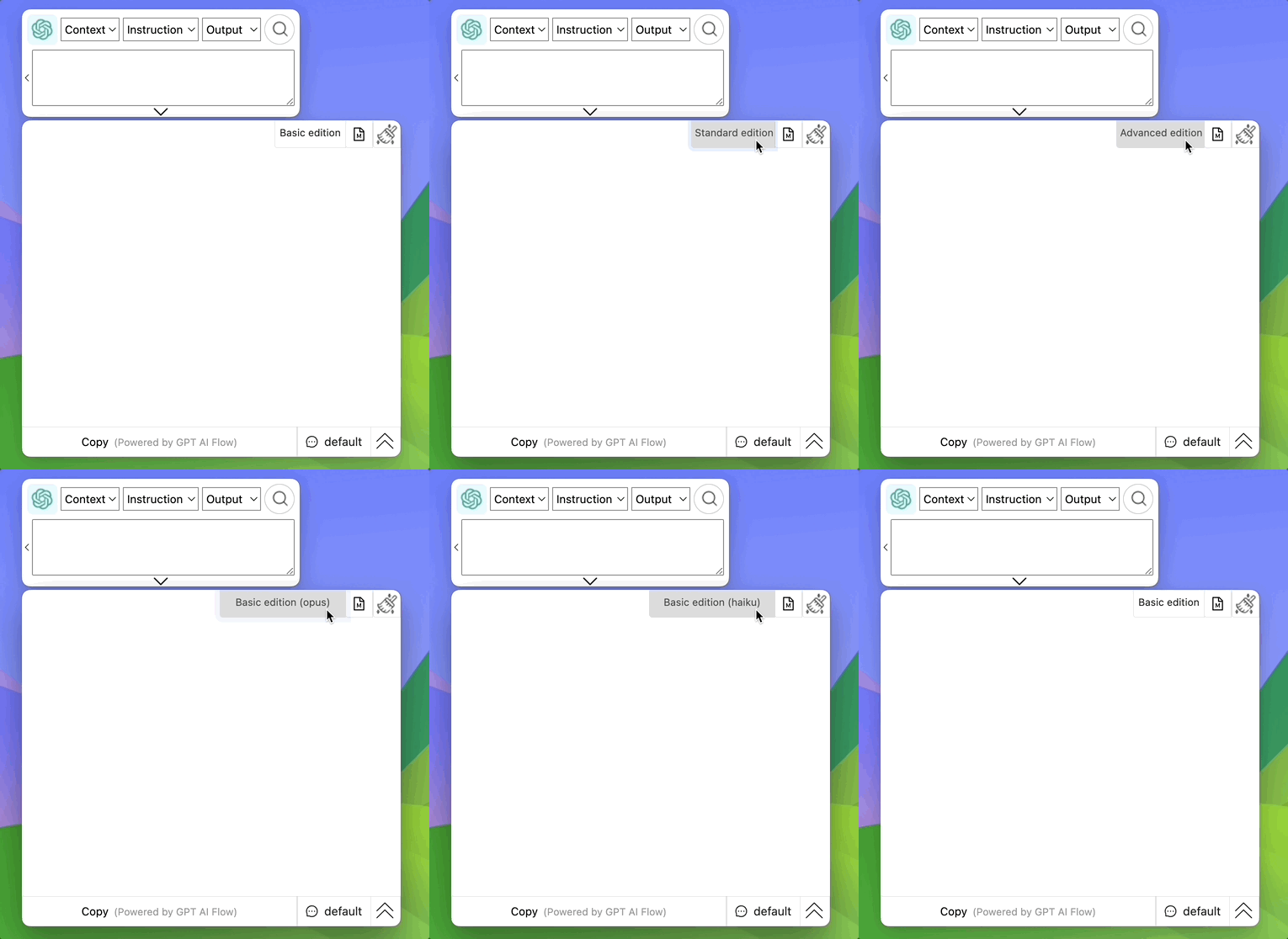
02-Conversation Model Switch
- You can choose different AI models to handle the current conversation to get different answer styles or capabilities.
03-Conversation Management Buttons
- Markdown Format: You can save the complete conversation with AI in Markdown format, which is compatible with note-taking software like Obsidian, making it convenient for later viewing and organizing.
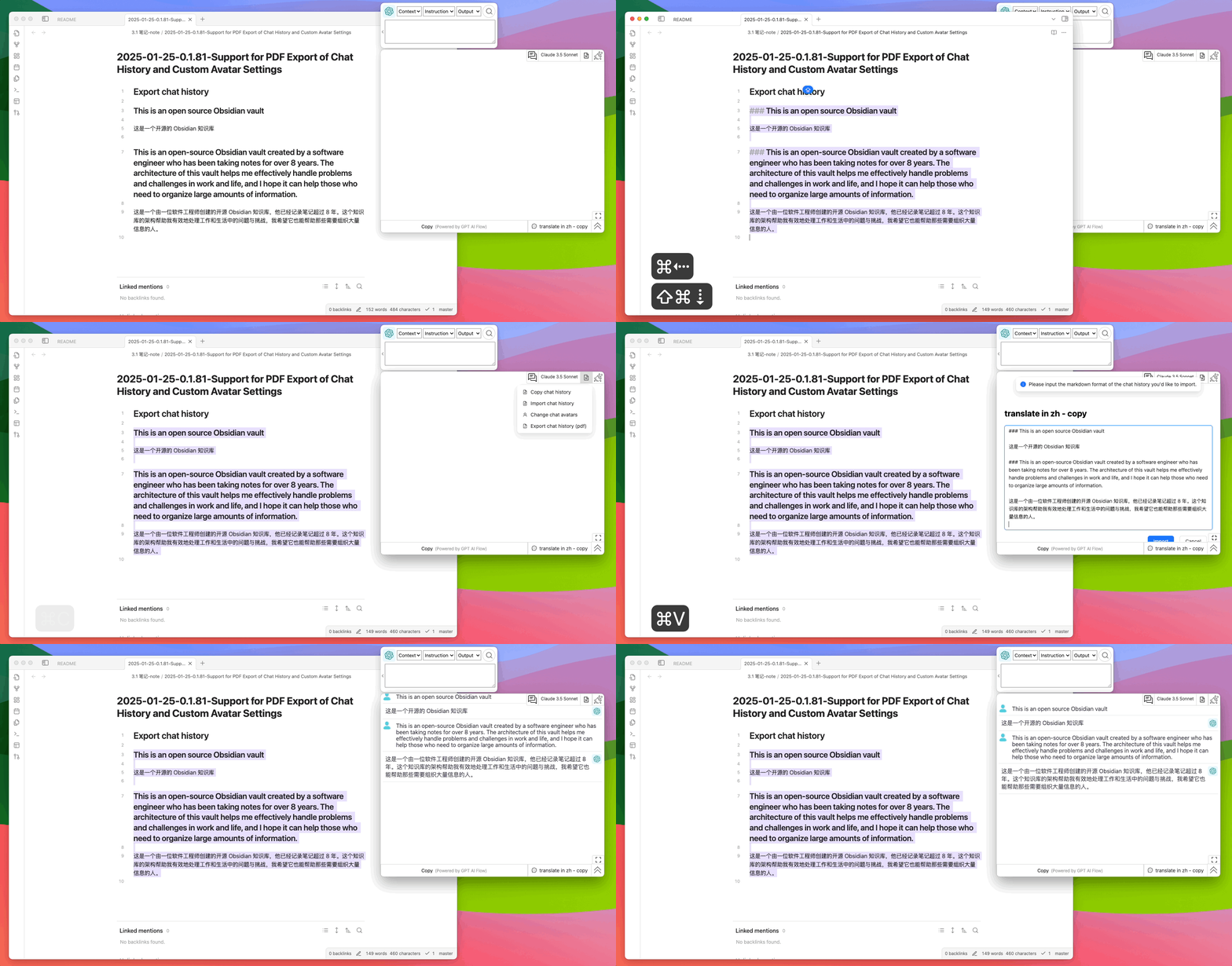
01-Copy Conversation History Markdown Format: Compatible with Obsidian and other note-taking software
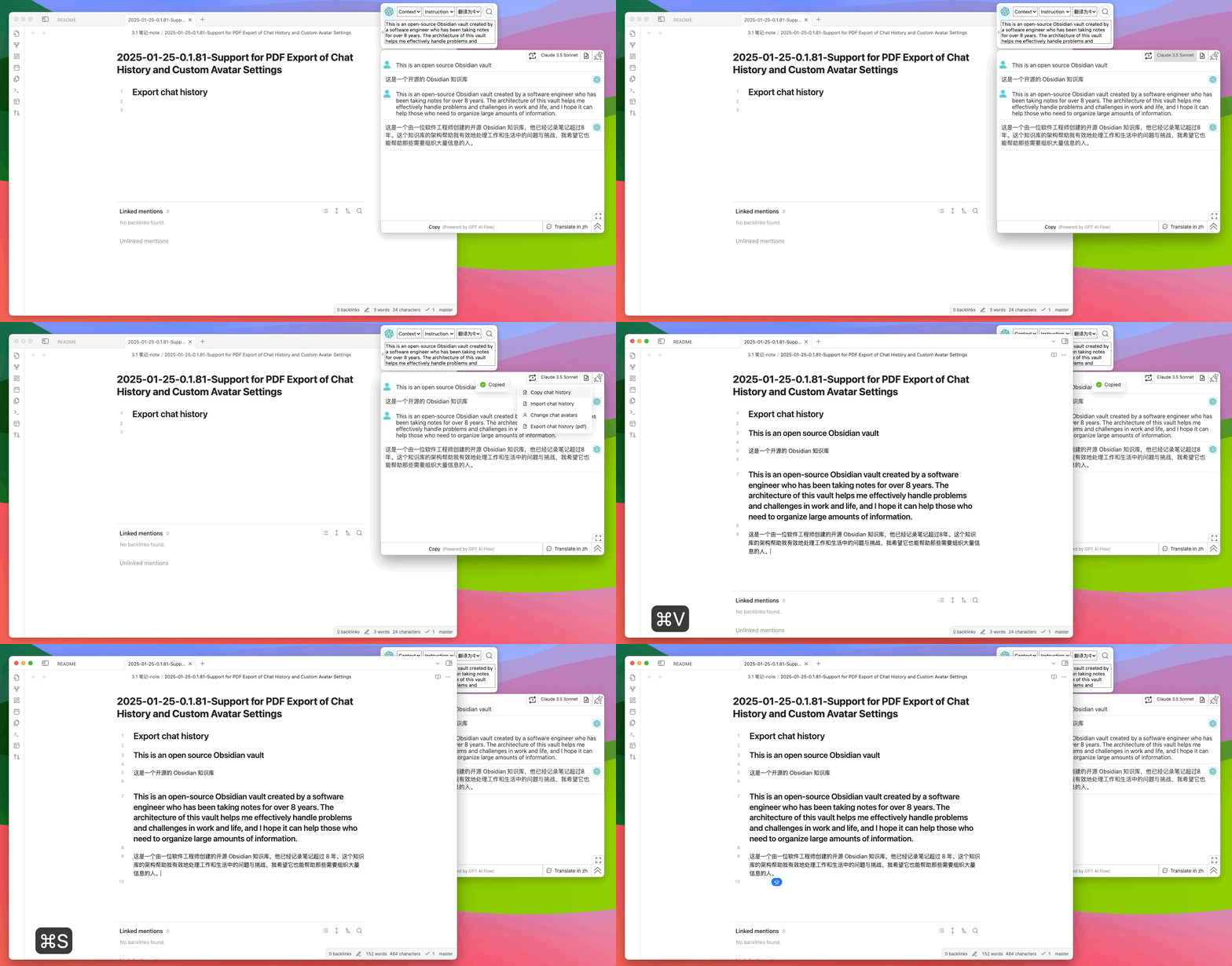
02-Import Conversation History Markdown Format
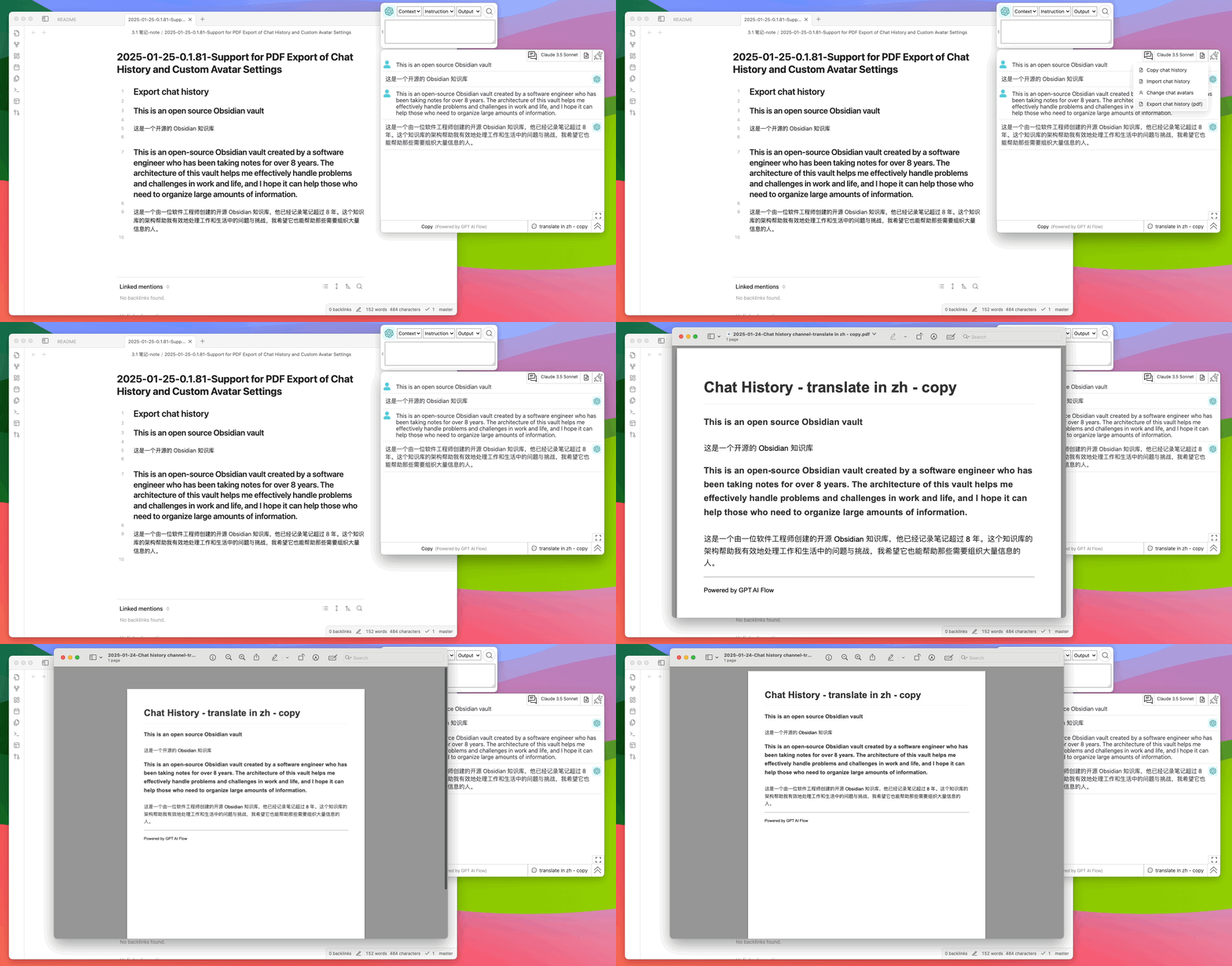
03-Export Conversation History PDF Format
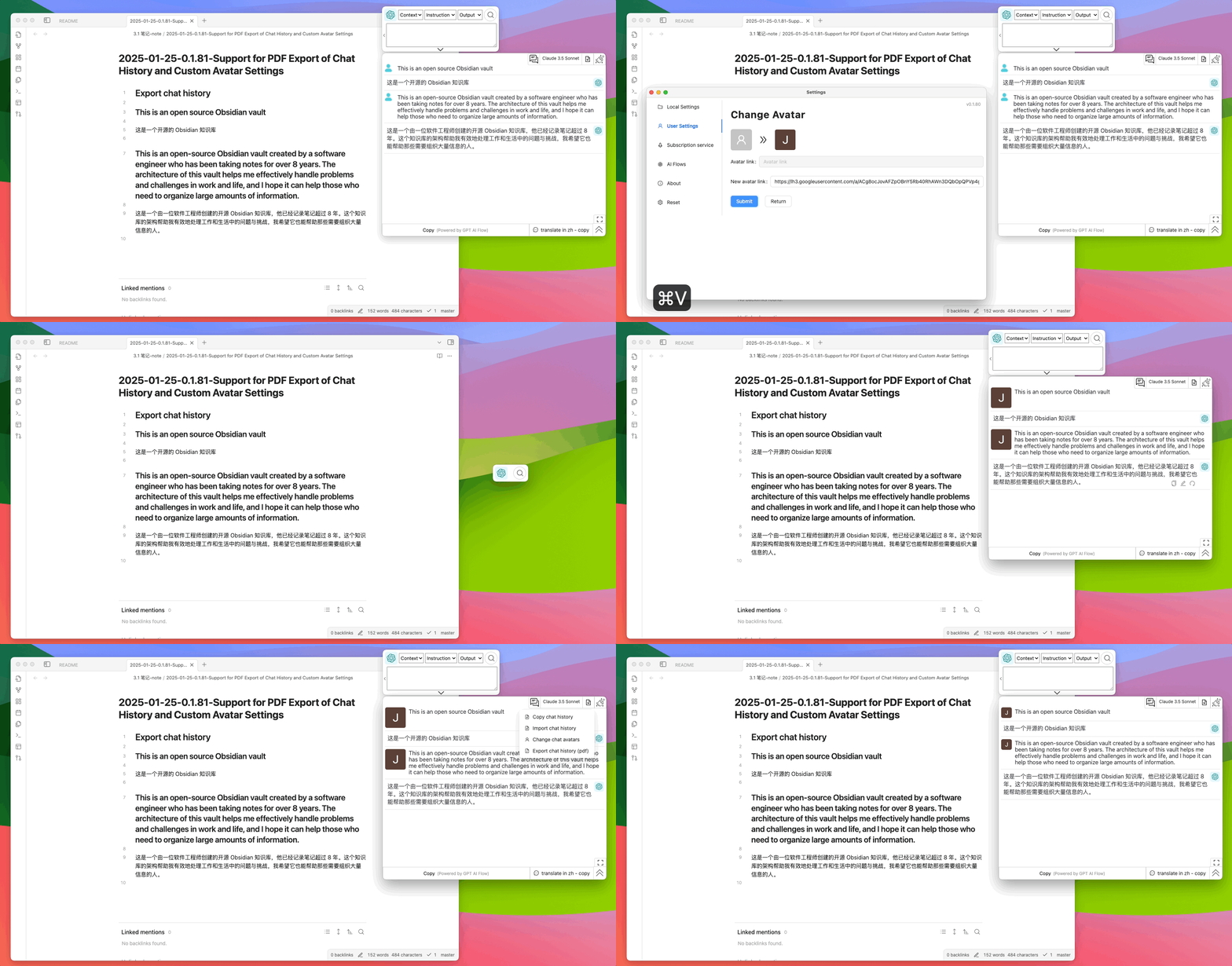
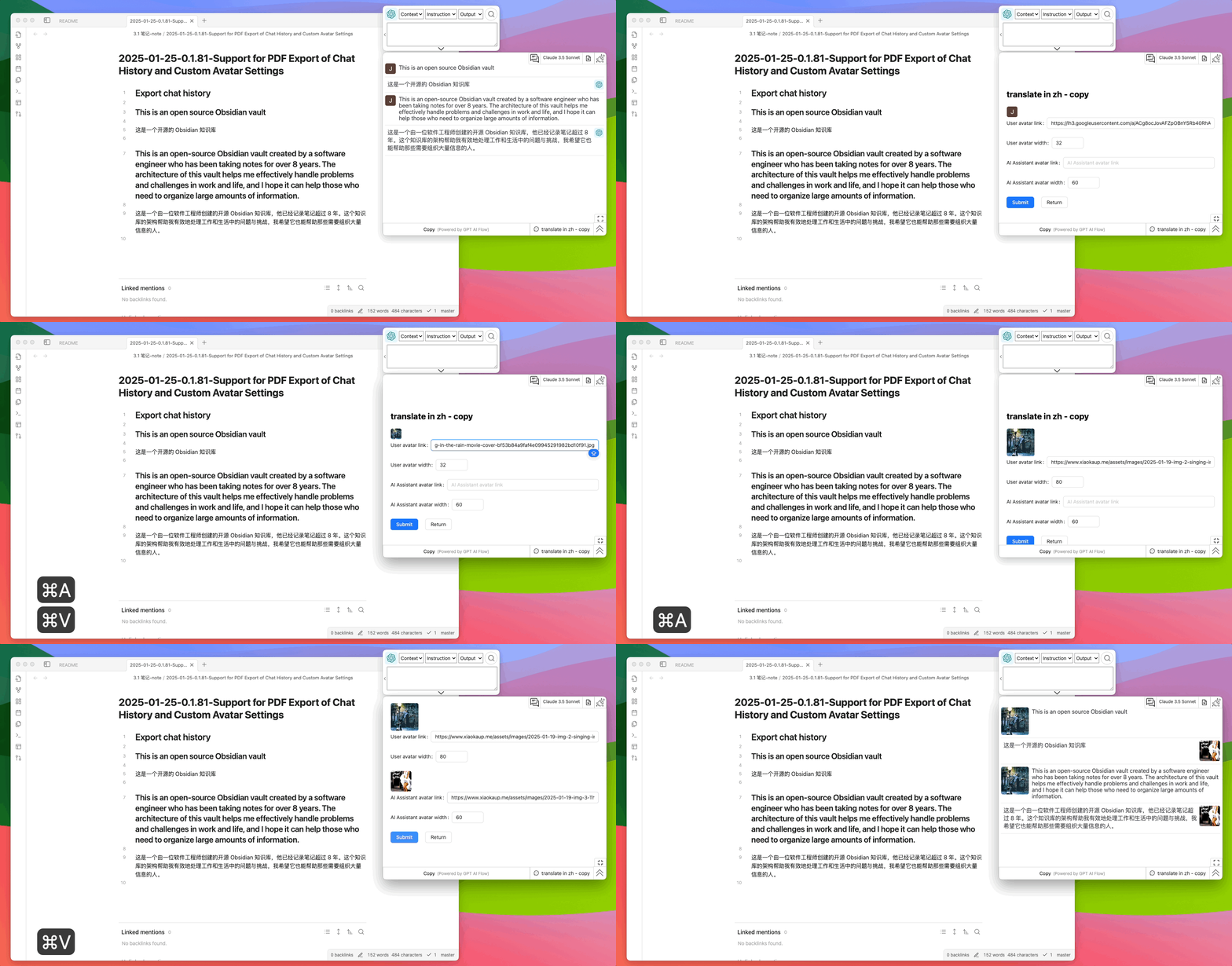
04-Change Conversation Avatar
04-Conversation Window Switch

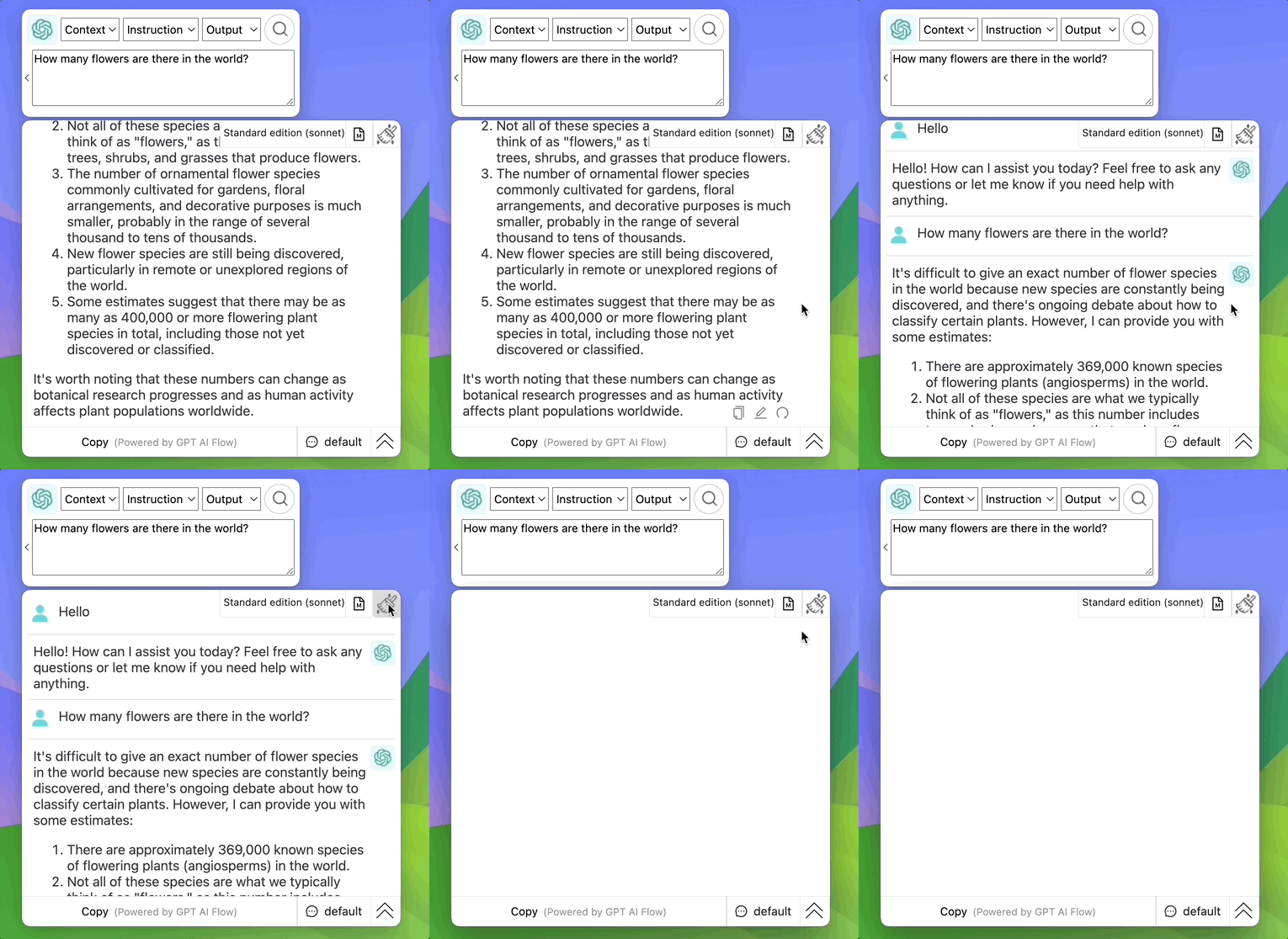
05-Clear Current Chat History
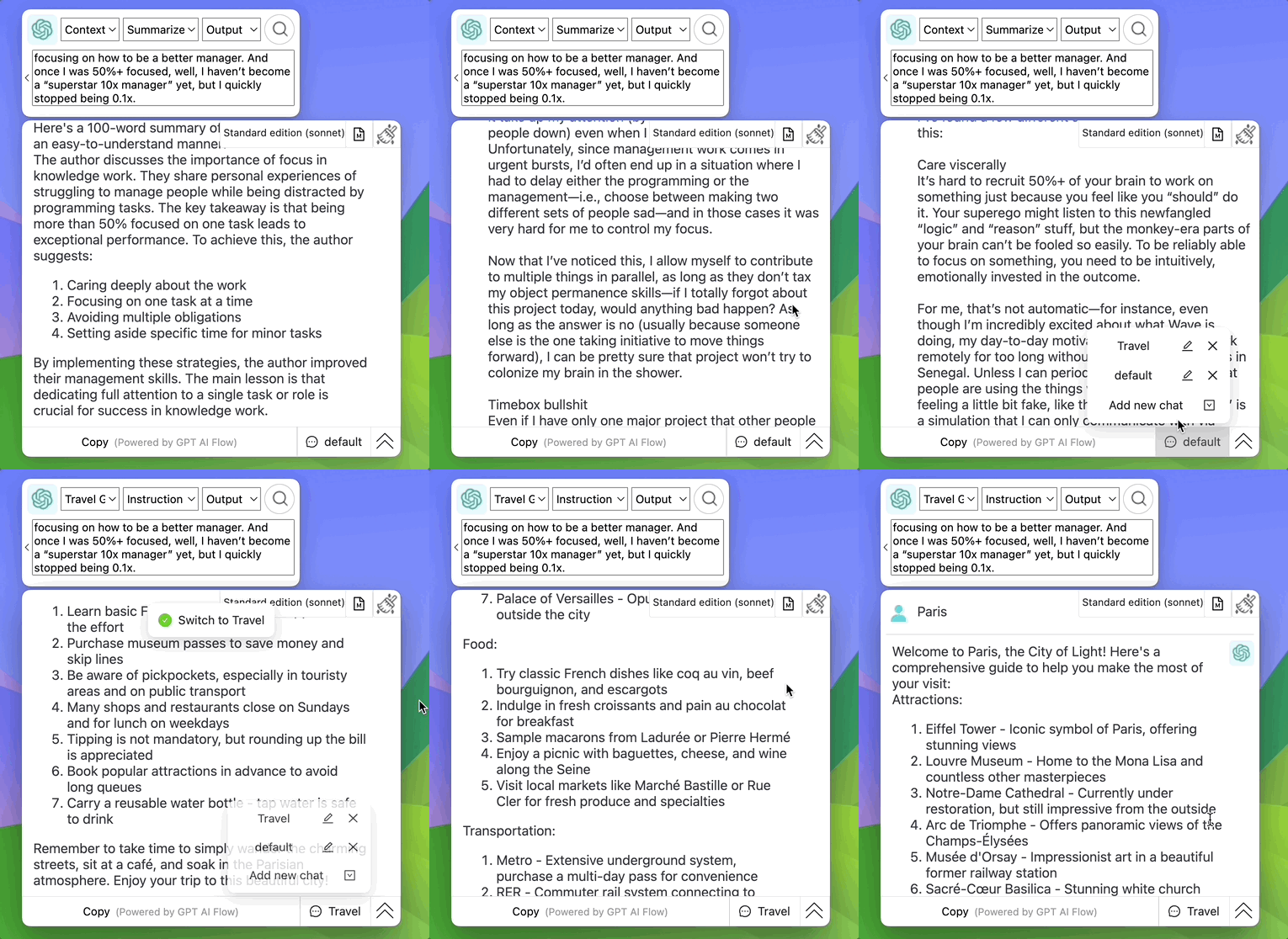
03-Select Chat Channel
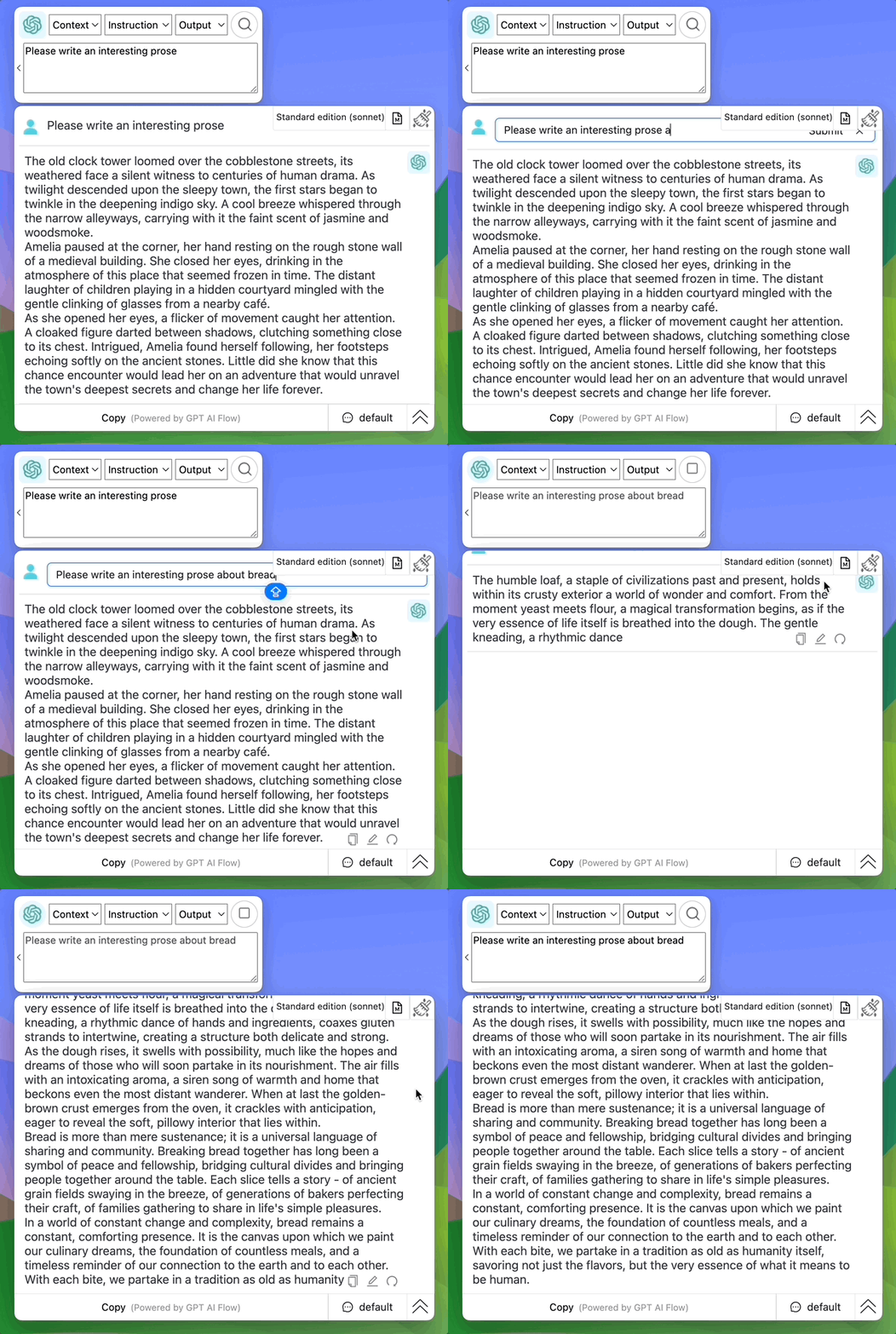
04-Modification Operations
Modify Question
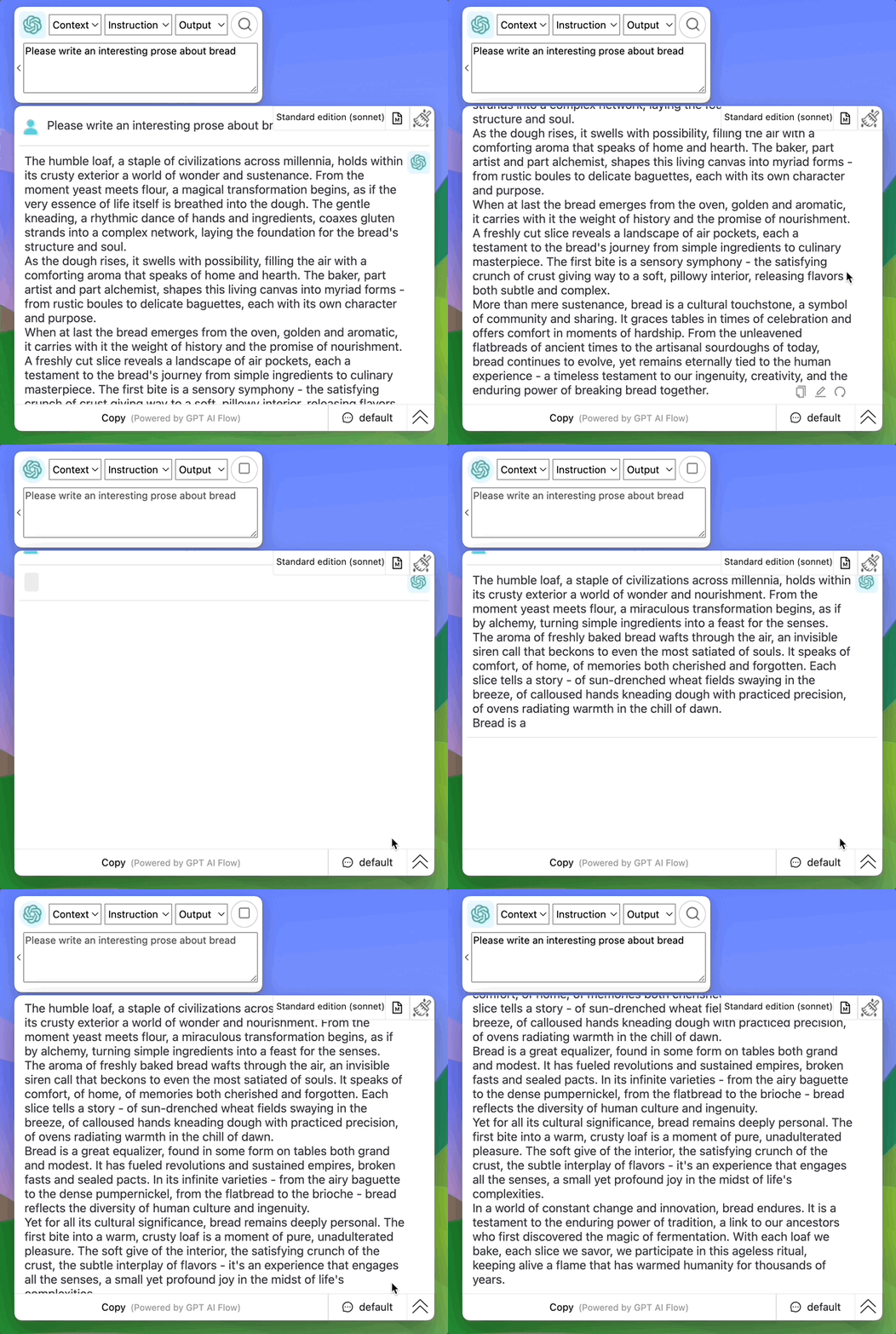
Regenerate Answer
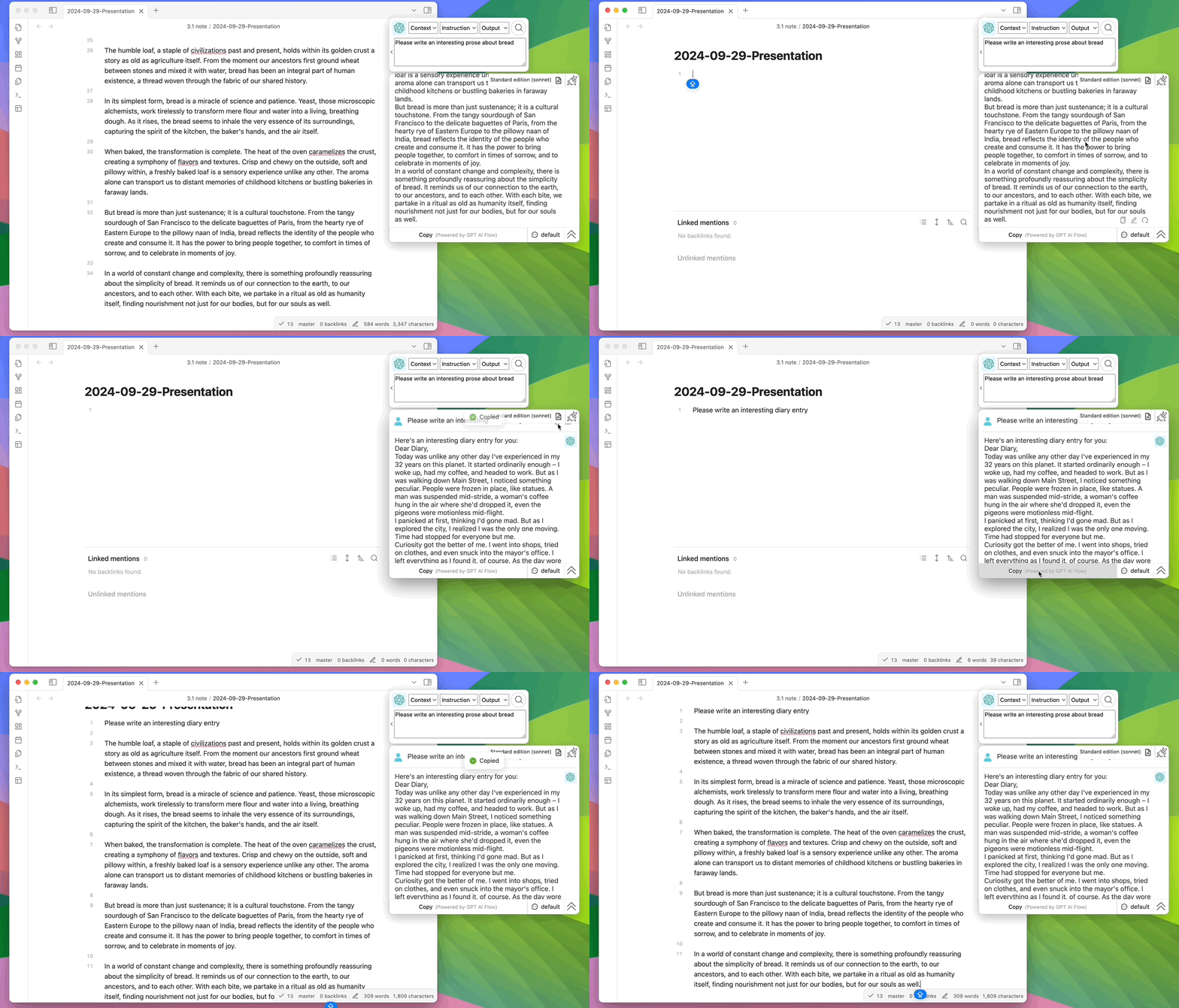
05-Copy Operations
Copy Each Message
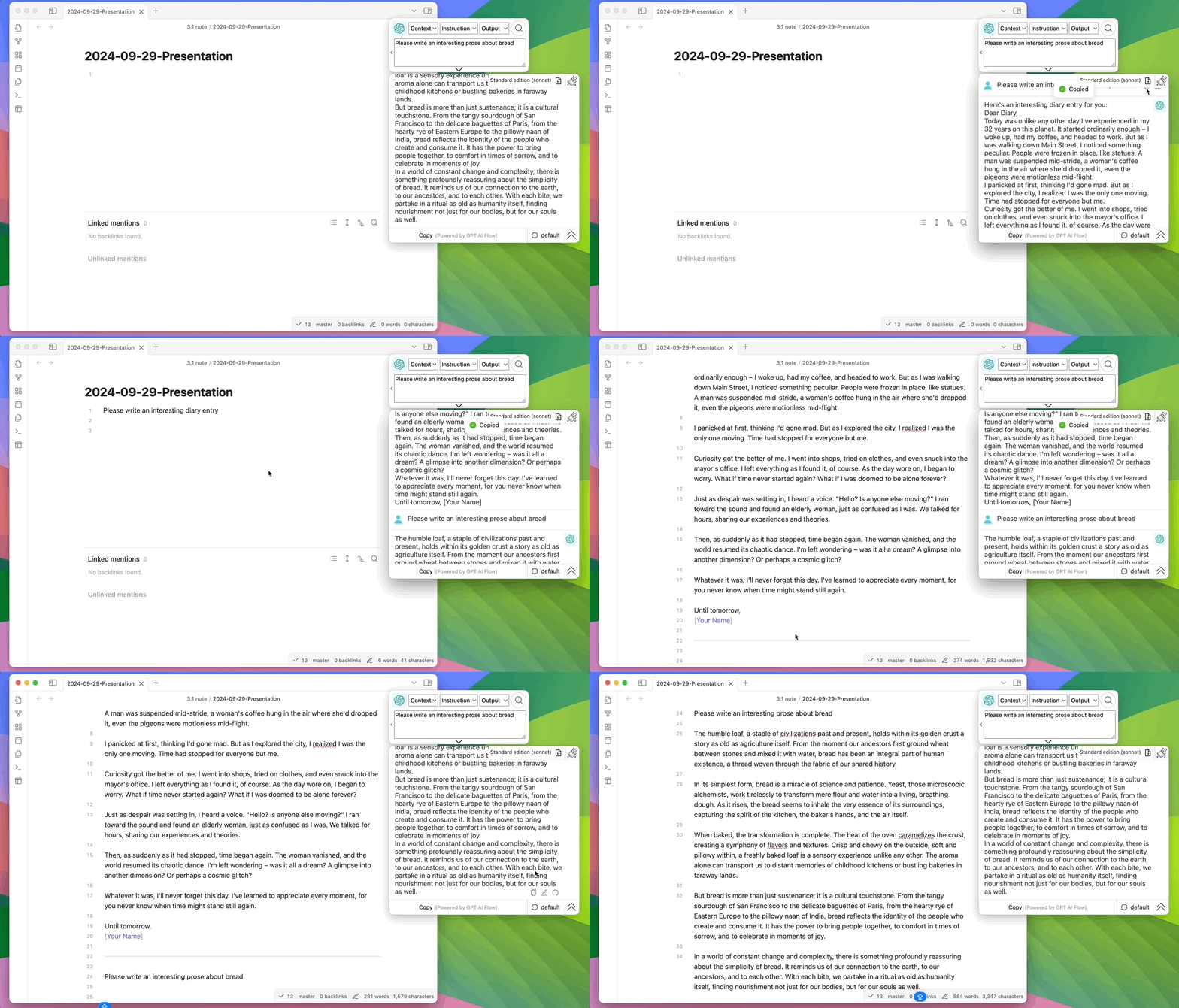
Copy Last Message
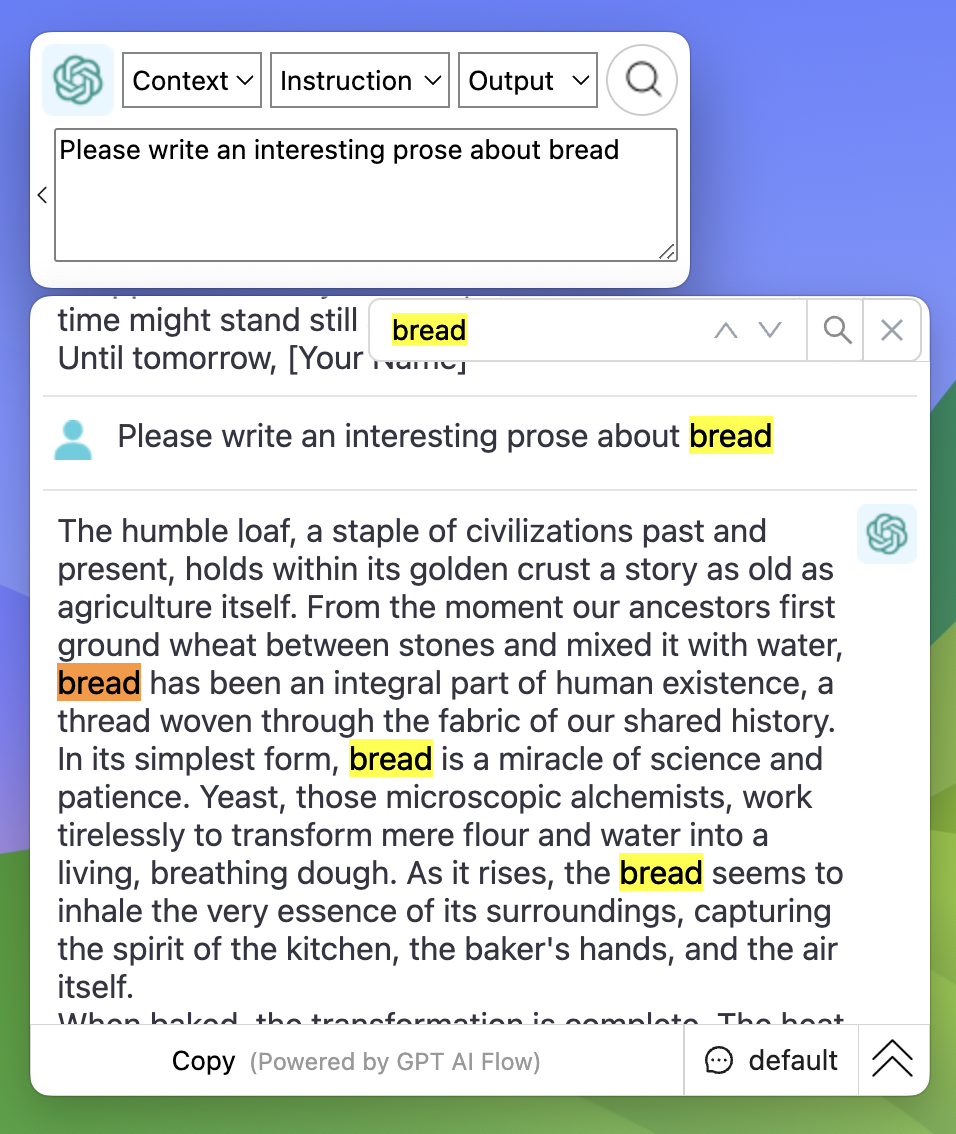
06-Text Search ctrl + f
Join Us
- Try it now: Download Desktop App
- Contact Email: hello@gptaiflow.com
- Product Feedback:
- Tencent Survey: Click here
- Google Form: Click here
- 💬 Questions? Check the FAQ: Click here
Start using the Obsidian Writing Agents Team today — and let the notes that have been sleeping in your Obsidian grow again.